 BeforeAfter
Personal photos
Remove a date stamp
Clean up a timestamp, location label, or caption you added to a photo you own. A small text overlay against a simple sky, road, wall, or table is a good place to start.
Try it on your image eraser.photosImage tools Usage rules
 Local image clean-up
Brush over captions, date stamps, and text overlays on an image you own or are allowed to edit. Our local AI text remover rebuilds the selected area in your browser, then you download a clean JPG or PNG.
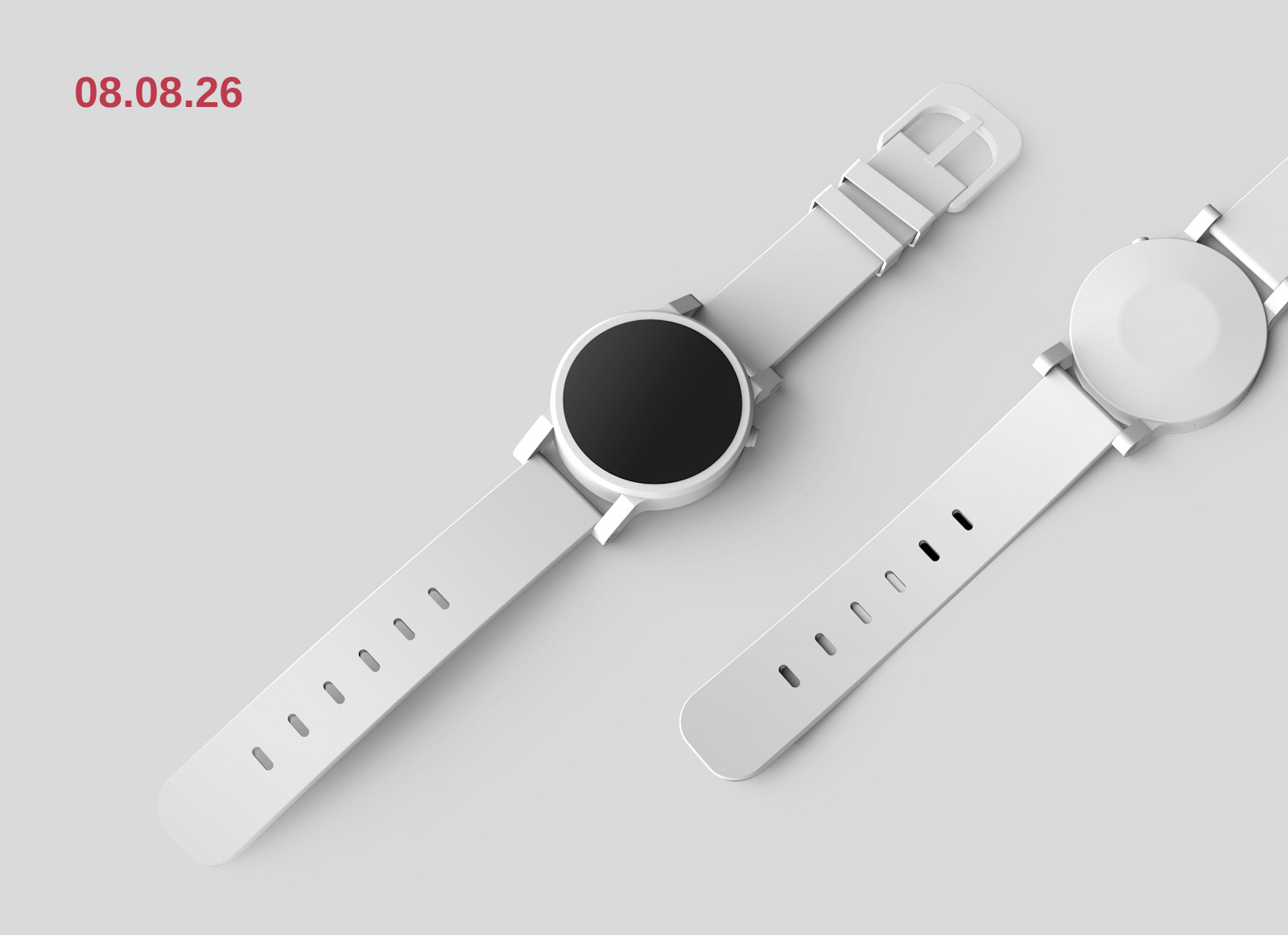
Try with an example
For non-explicit images only. Do not upload sexual, nude, or age-restricted content. Read the Terms.
See the difference
This text remover from image files lets you point to the exact words that need attention. Brush only the caption, date stamp, or overlay you want to remove; the tool then uses nearby pixels to rebuild that selected area. It is a focused clean-up, not a crop or a full-image redesign.
 BeforeAfter
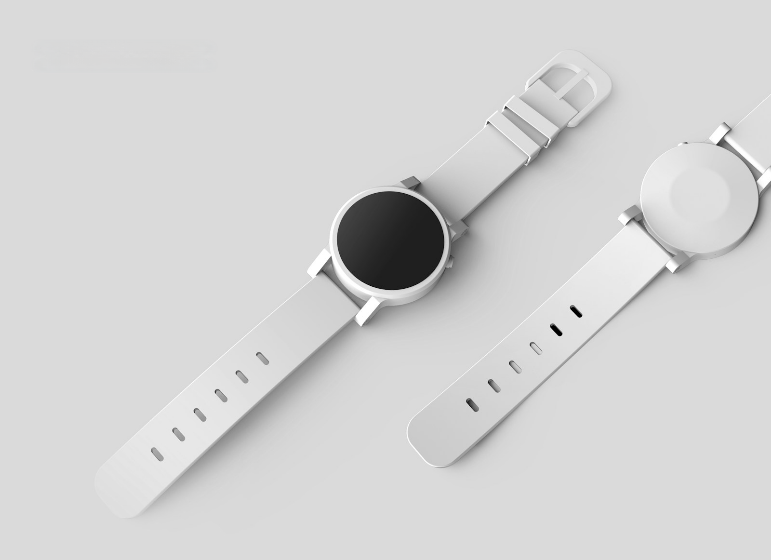
This before/after uses a licensed Unsplash photo, our own date-stamp overlay, and the same local model used by the tool. It shows the kind of small, isolated text removal this page is designed for; fine texture, faces, edges, and complex patterns need a careful review.
Convert formats, reduce file size, remove a background, or prepare product photos. Keep working with your image, right here.
Use cases
Use this image text remover to remove text from images you own or have permission to edit. It is deliberately narrow: choose the words, inspect the reconstruction, and keep control of the finished file.
BeforeAfterPersonal photos
Clean up a timestamp, location label, or caption you added to a photo you own. A small text overlay against a simple sky, road, wall, or table is a good place to start.
Try it on your image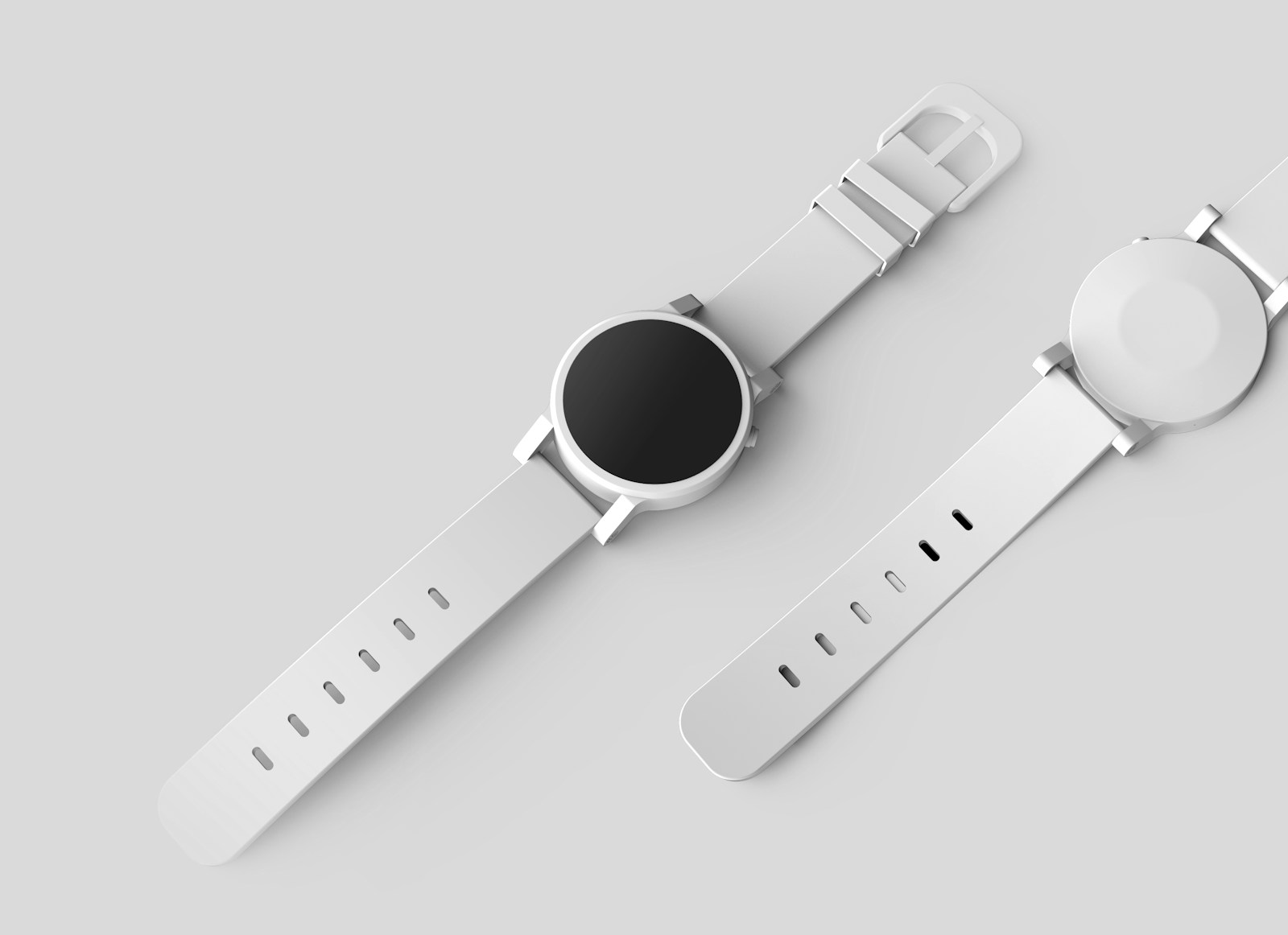 BeforeAfter
Product images
Remove text from an authorized product image when a temporary campaign line or old color label no longer belongs there. Keep the product, framing, and image size while you review the rebuilt area.
Try it on your image BeforeAfter
Graphics & slides
Erase text from a slide, social graphic, or campaign background you created, then add your next message in the design tool you already use. Only edit work you own or may modify.
Try it on your imageChoose your task
See advice for the image and text you are working with.
How it works
You do the selecting; the browser does the local reconstruction. There is no account, editor download, or remote image queue between you and the result.
Choose a JPG, PNG, or WebP up to 20 MB and 24 megapixels. You can upload your own file, drag it into the tool, paste from the clipboard, or try the date-stamp example first.
Paint over only the words you want to remove. This precise selection helps you remove text without masking a larger part of the image. Zoom in for small lettering, refine the mask with the eraser, and undo a stroke if it reaches into a detail you want to keep.
Select Remove Text to remove text from the marked area with local image processing. Inspect the result at full size, retry with a tighter brush if needed, then save a PNG or JPG to your device.
A focused text remover
When text is baked into a photo, a screenshot, or a graphic, deleting it does not reveal what was behind it. To remove text from an image cleanly, a text remover from image files has to estimate that missing background from the surrounding pixels. That is why a controlled brush and a clear review step matter.
You do not need to install Photoshop for a small, clearly defined text removal task. Open an image you own, zoom into the words, brush over the complete visible letters, and review the rebuilt background before downloading. This browser workflow is most useful when the text sits on a simple or repeating area. A manual editor may be better when large words cross a face, product edge, or detailed pattern and need precise retouching. Keep the original image if you may need to return to it later.
Read the full guideText removal is usually easier when the words cover a small part of a repeatable background, such as a plain wall, sky, tabletop, road, or blurred surface. It can be harder when lettering crosses a face, a hand, detailed fabric, tight geometry, or sharp product edges. When you remove text, start with a close brush, avoid masking the surrounding subject, and retry if the first result changes a detail that matters. Results vary with resolution, compression, and the image itself.
This online text remover does not ask you to hand over the image for processing. Your image pixels, brush mask, filename, and result stay in the browser on your device. The model is delivered to the browser when it is needed, while the image remains local. You can reset, undo, zoom, and download only when the edit looks right to you.
These background sources explain the web image formats and browser-based model execution behind the product facts above. They do not review or endorse eraser.photos.
Local by design
The image, brush mask, filename, and result are processed in your browser. The model downloads when you need it, but your image is not sent to our service for text removal. This makes eraser.photos a useful option when you want to remove text from an image without creating an account or uploading the photo to an edit queue.
Read the Privacy PolicyHelpful answers
Short answers about formats, privacy, expected results, and the limits that keep this tool safe to use.
Upload an image you own or are authorized to edit, brush over the unwanted text, choose Remove Text, then inspect and download the result. The tool is designed for removing small text overlays without installing a desktop editor. If the first pass reaches into a subject or edge, undo it and use a tighter brush.
No. Image pixels, filenames, brush masks, and results stay in your browser. A model file is delivered to your browser when you choose to process an image, but the image is not sent to eraser.photos for processing. Read the Privacy Policy for the separate web-delivery information handled by Cloudflare.
This text remover from image files supports JPG, PNG, and WebP images up to 20 MB and 24 megapixels. When you are happy with the clean-up, download the finished image as a PNG or JPG. Files outside those limits may be too demanding for a browser-based edit.
It can help remove captions from images, date stamps from photos, small labels, and text overlays when you are authorized to edit them. A simple, repeated background tends to work best. Review closely around faces, lettering that overlaps objects, detailed patterns, and low-resolution screenshots.
Yes, the page and brush controls work on a modern mobile browser. For a precise edit, zoom into the text and use a smaller brush. Larger images and complex backgrounds can require more device memory, so a desktop browser may be more comfortable for detailed work.
No. This is a General Audience service. Do not use it with sexual, nude, sexually suggestive, or age-restricted content, or any content involving minors. Because images are processed locally, you are responsible for following this rule before you start.
No. Do not use the tool on identity documents, passports, driver’s licenses, rights-management marks, or watermarks. Only remove text from images you own or have permission to modify and use. The tool does not grant any rights in the source image or the result.
Ready when you are